01
Data stays on your PC, no account
Your library, tags, settings and launch history live on this PC. You can manage local games without signing up or logging in, even offline.
 GameLibrary
Windows 10 / 11 · x64 · v1.7.13
Scan your game folders, review the results, and add them to your library. Organize with tags and launch from here. Your files stay where they are.
Start with a folder
Only the folders you add are scanned. Results go to a review list so you can check each launcher before adding it.
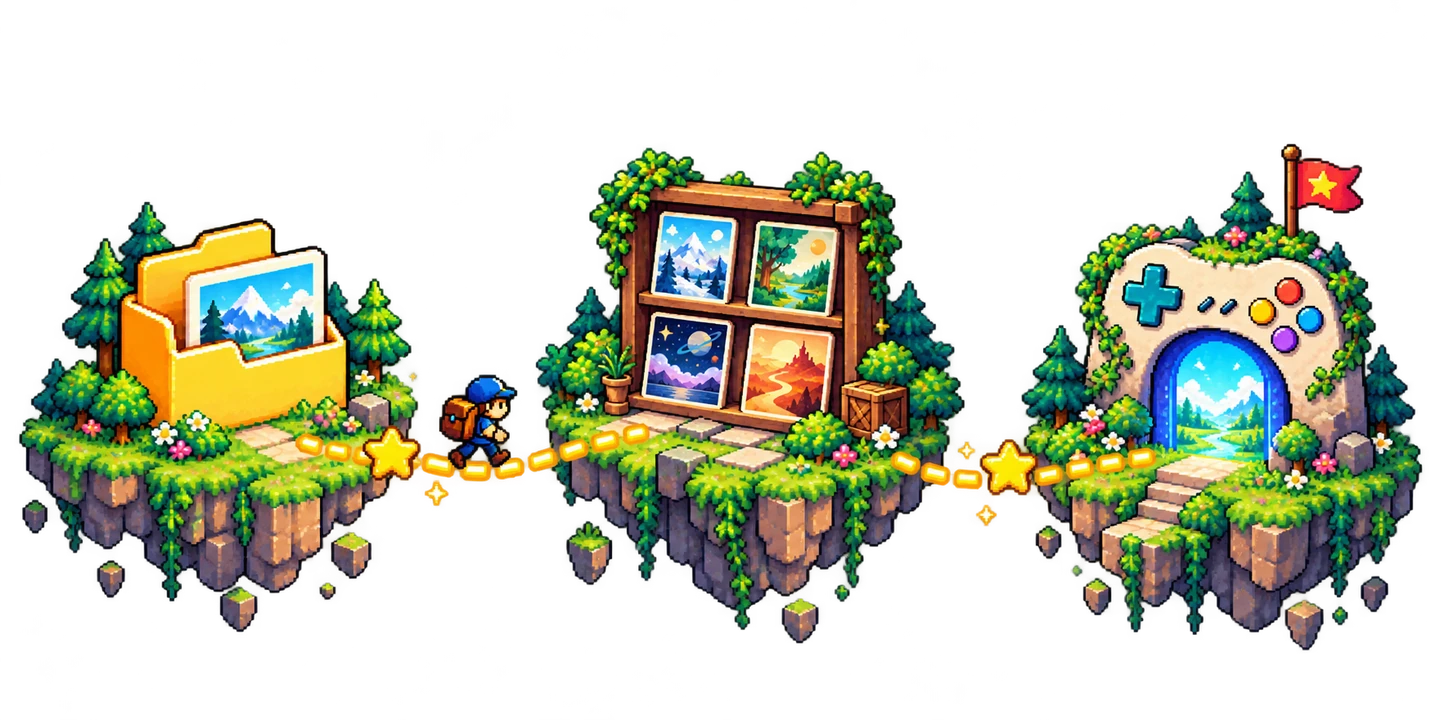
Add your game folders. Only those locations are scanned; common engines are recognized and installers are filtered out.
Candidates go to the review list first. Check the name, folder and launcher before adding a game.
Save the launcher and its arguments, then open the game from your library. Original files stay where they are.
The actual app
This is the real GameLibrary interface. Open the image to see the full capture.
Recognized game engines
Why GameLibrary
Library data stays on your PC. Scanning and adding games preserve original files, and you decide what enters the library.
01
Your library, tags, settings and launch history live on this PC. You can manage local games without signing up or logging in, even offline.
02
Scanning, adding and removing records never move your game files. Sending files to the Recycle Bin needs your separate confirmation.
03
Scanning only suggests candidate launchers. You check each one before it enters the library, so unrelated programs are not added automatically.
04
Detects Unity, RPG Maker MV / MZ, Ren’Py, Kirikiri and Flash automatically, and also supports adding EXE, LNK and SWF manually.
Organize and find
Search by title, path or tag, without opening each folder to find a game.
Group games by engine, genre or play status. A game can have more than one tag.
Favorite the games you play often. Set star ratings on tags to bring useful categories to the top.
In the game details, drag a tag into any category (including empty ones), or use the category picker instead.
Chinese translation
Configure Chinese translation for Unity games in your library: install fixed-version loaders and a translation plugin offline, with a backup first and restore anytime.
Bring your own translation service. Support and results vary by game.
The loader and plugin match the real bitness of the executable. Unknown or conflicting installs are left as they are, never overwritten by force.
Configures a usable Chinese font fallback for Unity UI and TextMeshPro, reducing missing glyphs in menus and dialogue.
Original files are backed up before installing and rolled back automatically on failure. You confirm the result by launching the game.
Uses a DeepSeek- or OpenAI-compatible translation API. Your key is stored locally and is never bundled with the release.
Launch your games
The launcher and its arguments are saved with the game, ready for the next time you play.
EXE / LNK
Choose an EXE or a Windows shortcut as the launcher. The game folder can stay on its current drive.
SWF
Flash games open with the player associated with .swf in Windows. A Flash player is not included; configure one first. When you add a whole collection folder, a suggested launch method is generated for each SWF / EXE inside it.
Data and files
Manage your library offline, without signing up for an account.
Folders, tags, settings and launch history are stored on this PC. Update checks access GitHub; games and companion tools may make their own network requests.
Scanning, adding games and regular record removal leave your files in place. Moving game files to the Recycle Bin requires separate confirmation. App data is stored in %LOCALAPPDATA%\GameLibrary by default.
Windows / x64
Get started
Windows 10 / 11 · x64
Choose the installer or portable version.
v1.7.13 · Official release
Follow the setup wizard. The desktop app and runtime are included, so no separate .NET installation is needed.
GameLibrary-Setup-v1.7.13.exeDownload installerThe maintainer confirmed real-machine acceptance and authorized this release on 2026-10-13.
Windows executables are unsigned. Verify the checksums after downloading. Release notes ↗
FAQ
Scanning and adding games leave files in place. Regular removal deletes only the library record; moving game files to the Recycle Bin requires your explicit confirmation.
Extract-and-play indie games, older titles, visual novels, SWF files, Windows shortcuts, and local games across multiple drives. Bring your own games; GameLibrary does not distribute them.
No. Scanning produces possible launchers for you to review before adding them. You can also add games manually.
GameLibrary uses the player associated with .swf in Windows. It has no built-in Flash player, so configure a compatible player first.
You can manage your local library without an account, offline. Update checks access GitHub; games or companion programs you launch may make their own network requests. Using Unity Chinese translation requires your own translation API key, which is stored locally.
Uninstalling leaves your game files and library data in place. App data is stored in %LOCALAPPDATA%\GameLibrary by default.